
Wallet Finder For Android, Wallet Tracker Card Google App, Wireless Rechargeable Item Locator, Ip68 Smartcard Tracker Tag


Wallet Finder For Android, Wallet Tracker Card Google App, Wireless Rechargeable Item Locator, Ip68 Smartcard Tracker Tag
SPECIFICATIONS
Battery Included: Yes
Brand Name: other
Certification: CE,FCC,RoHS
Choice: yes
High-concerned chemical: None
Origin: Mainland China
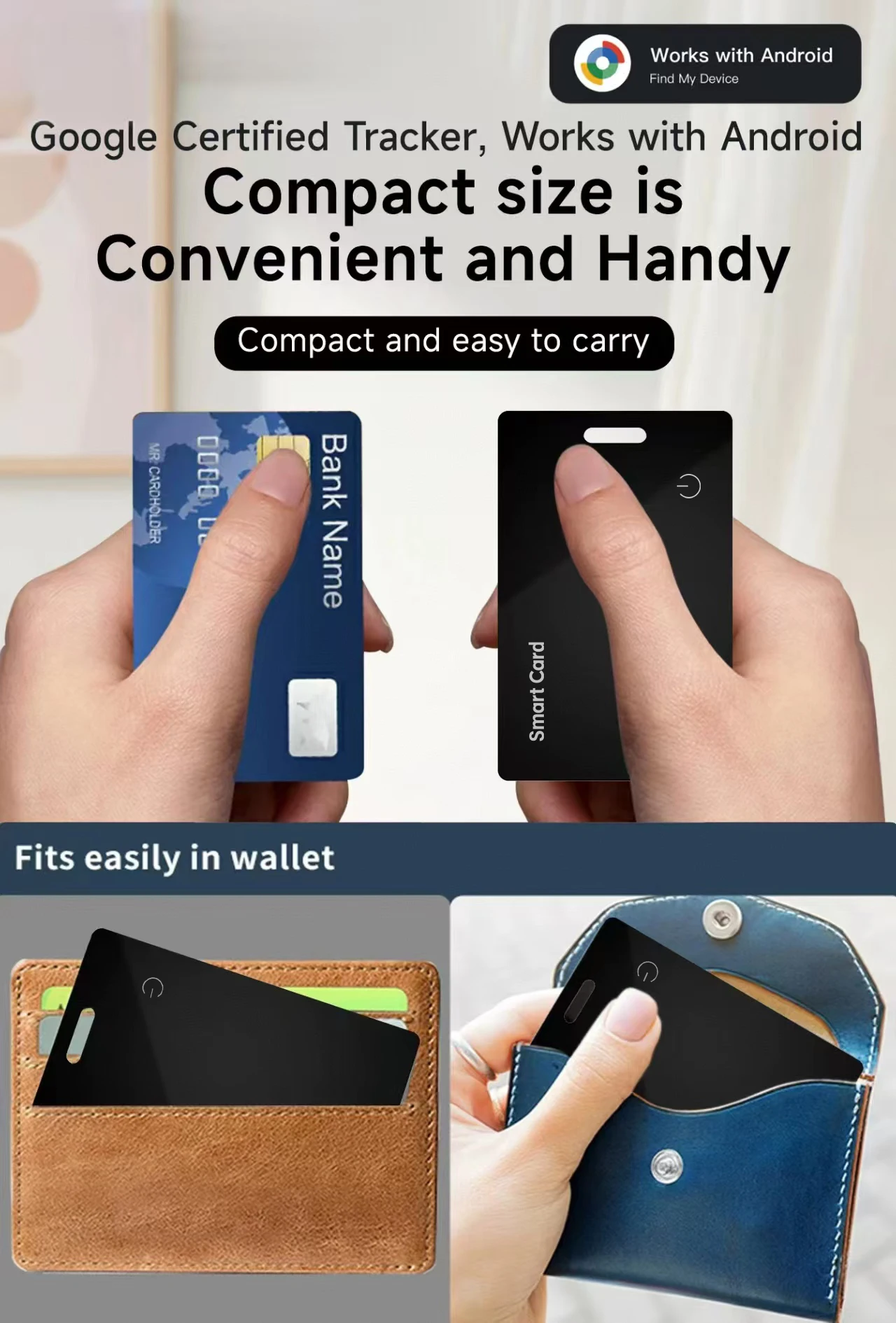
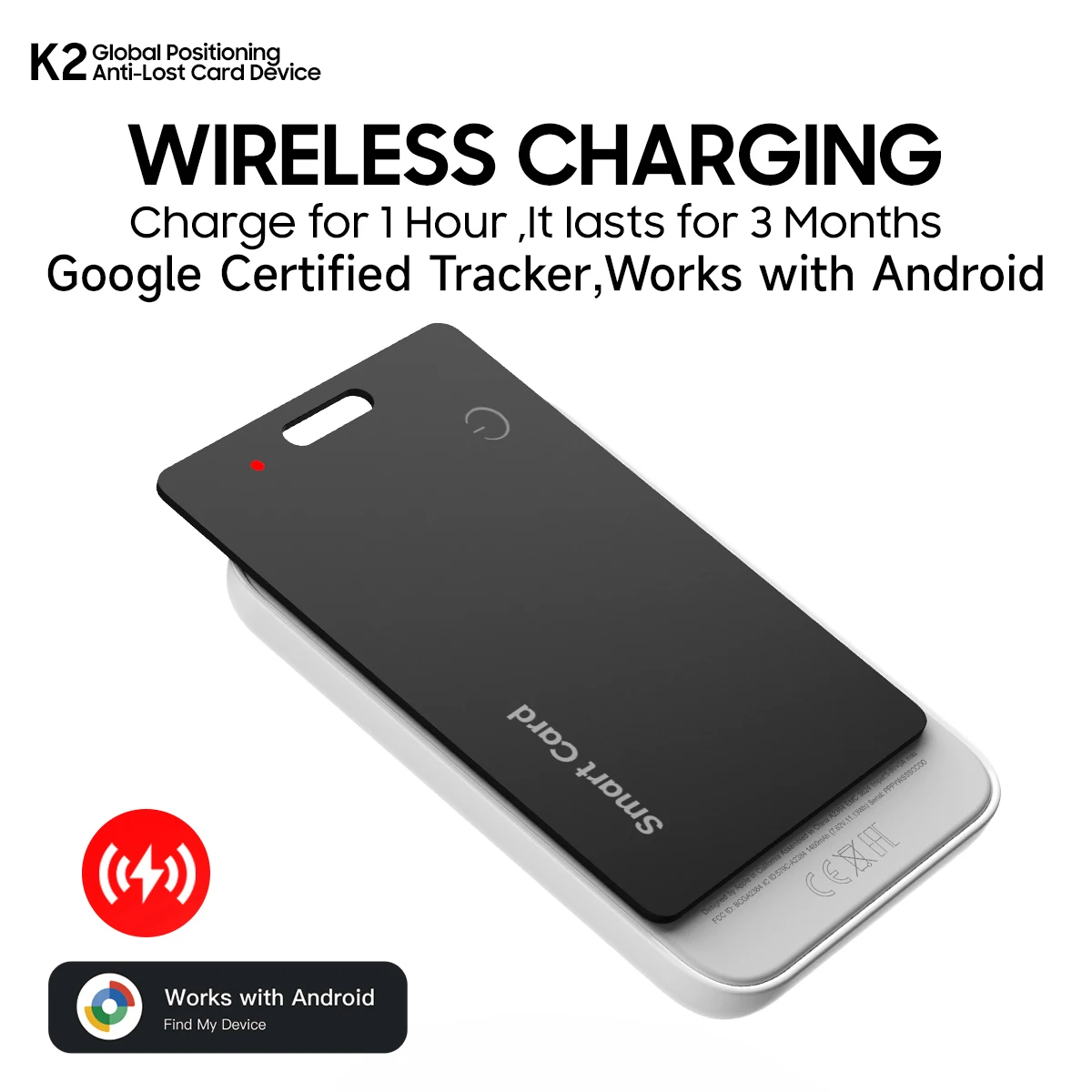
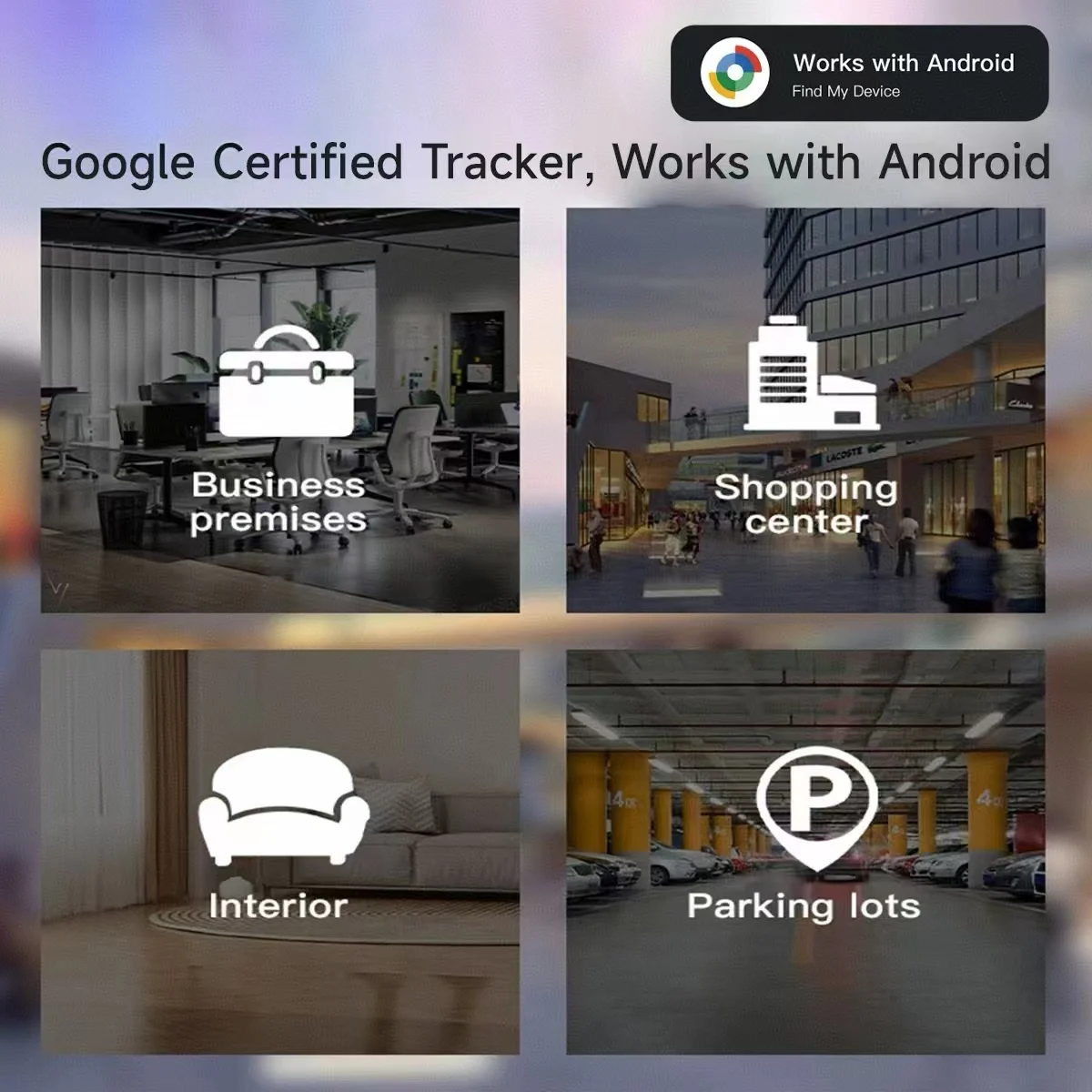
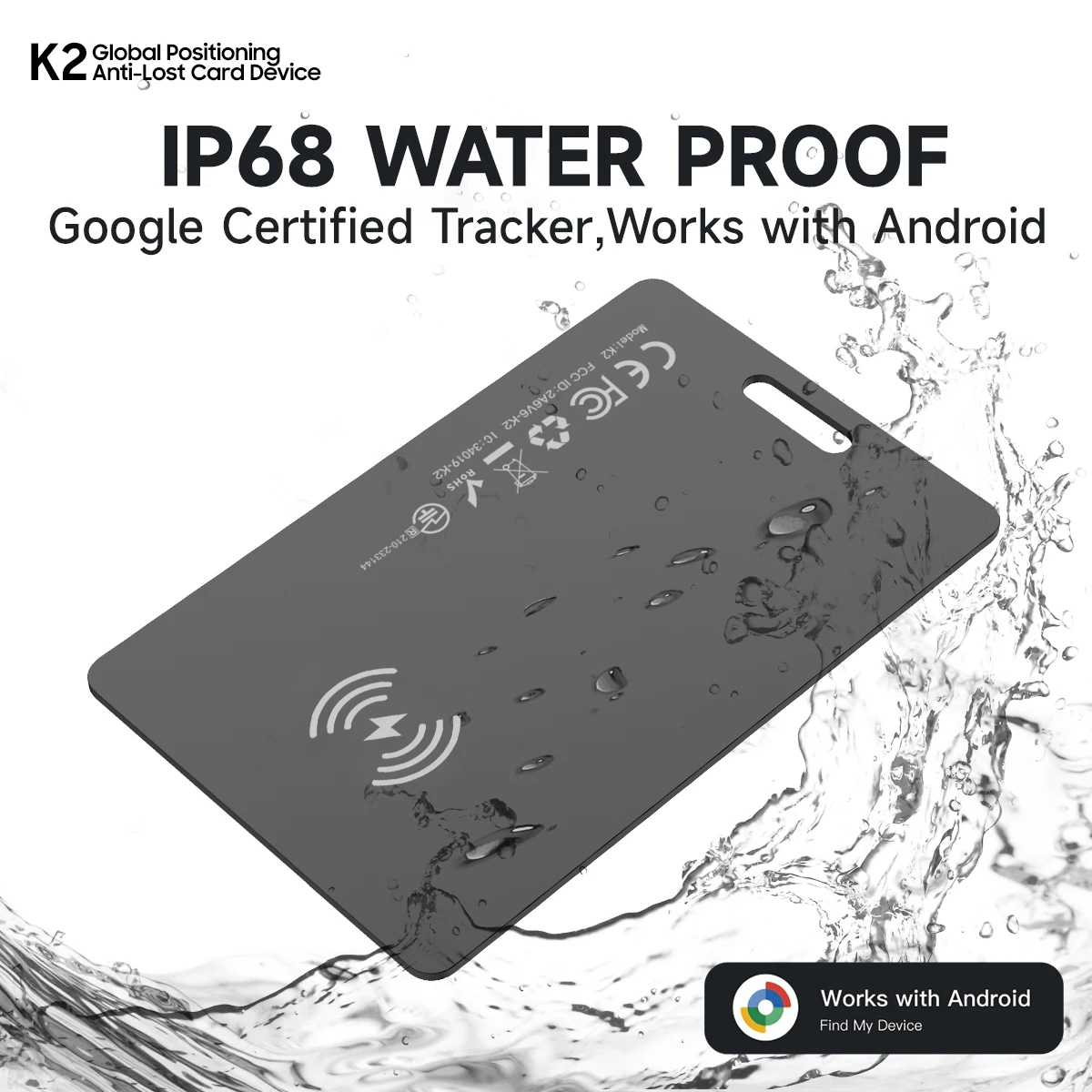
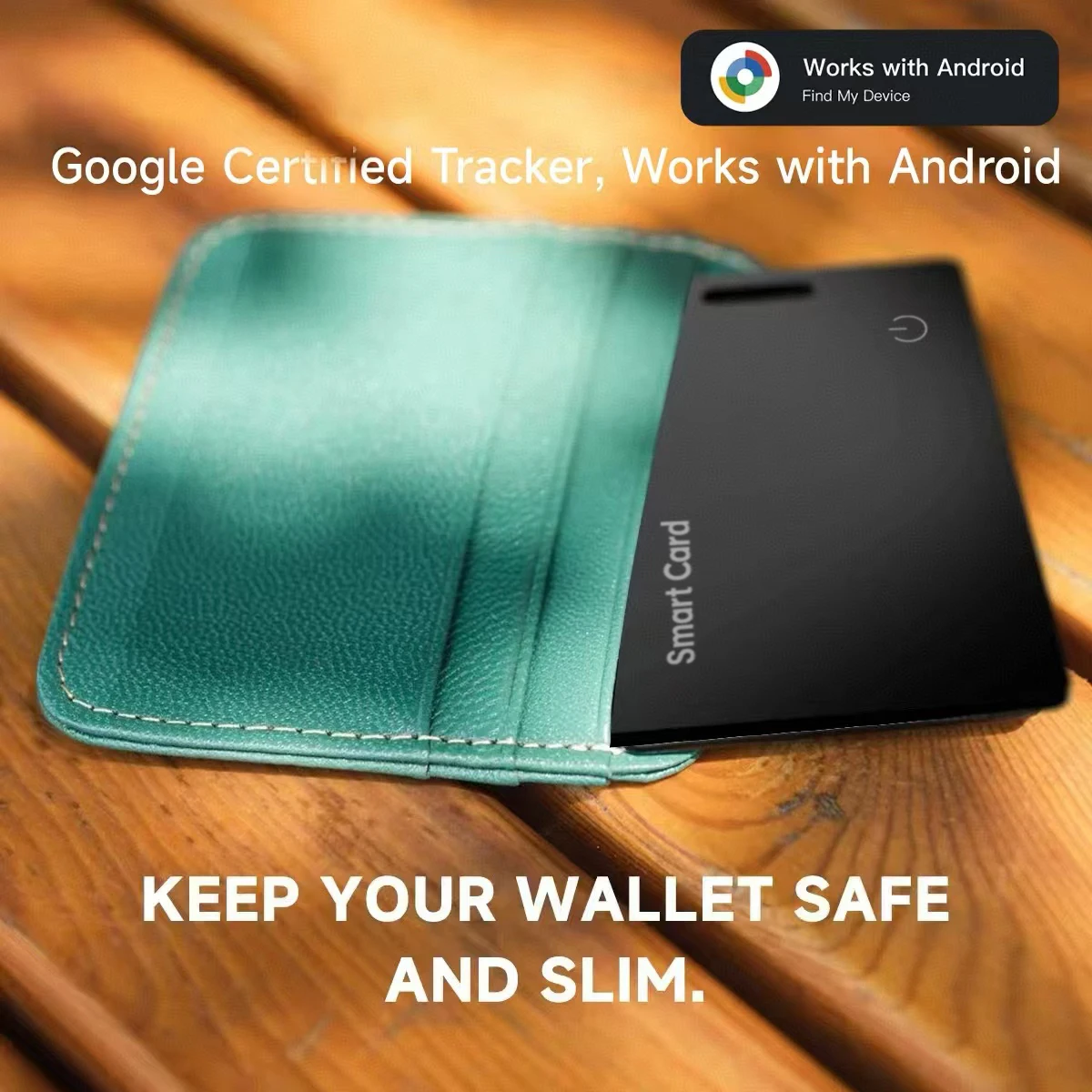
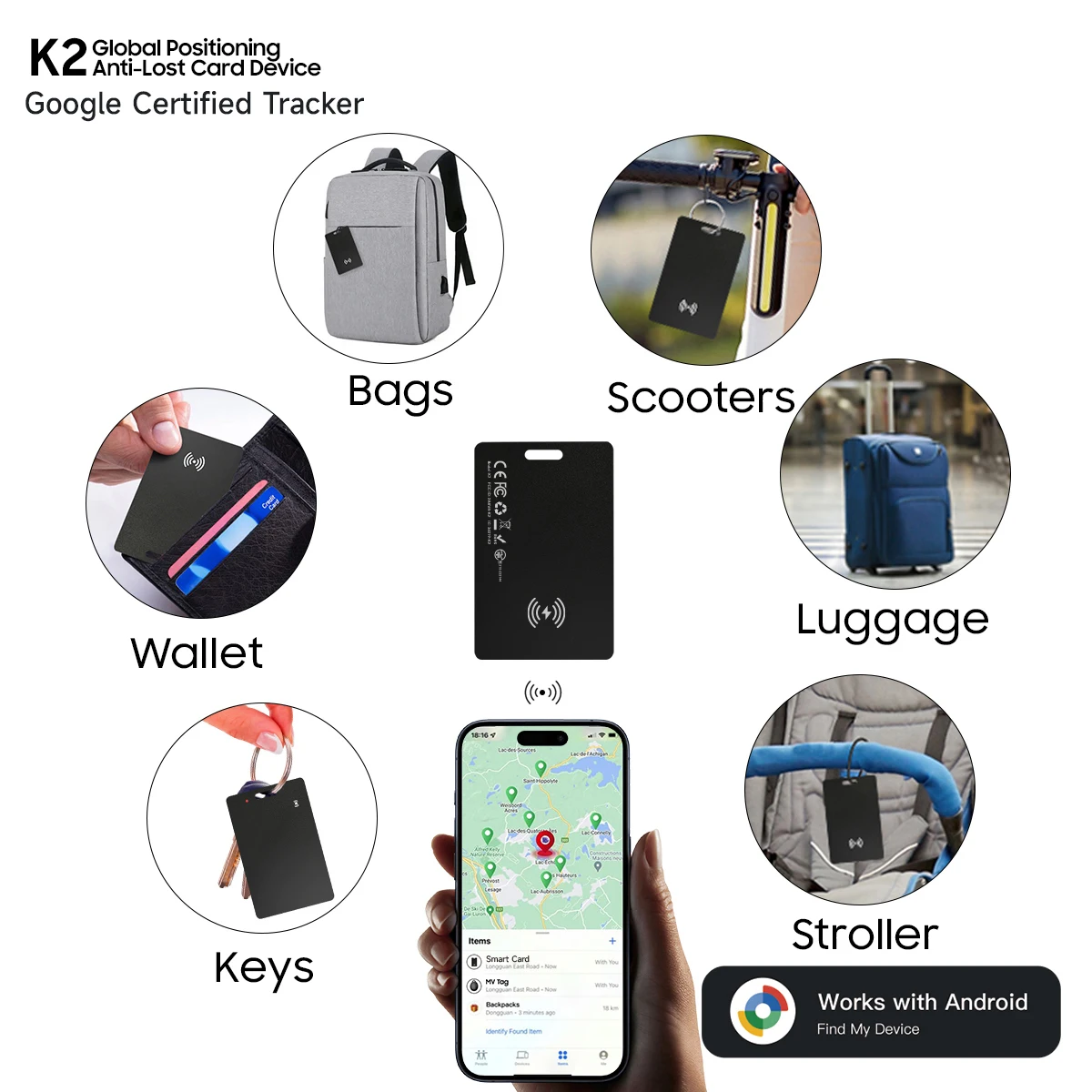
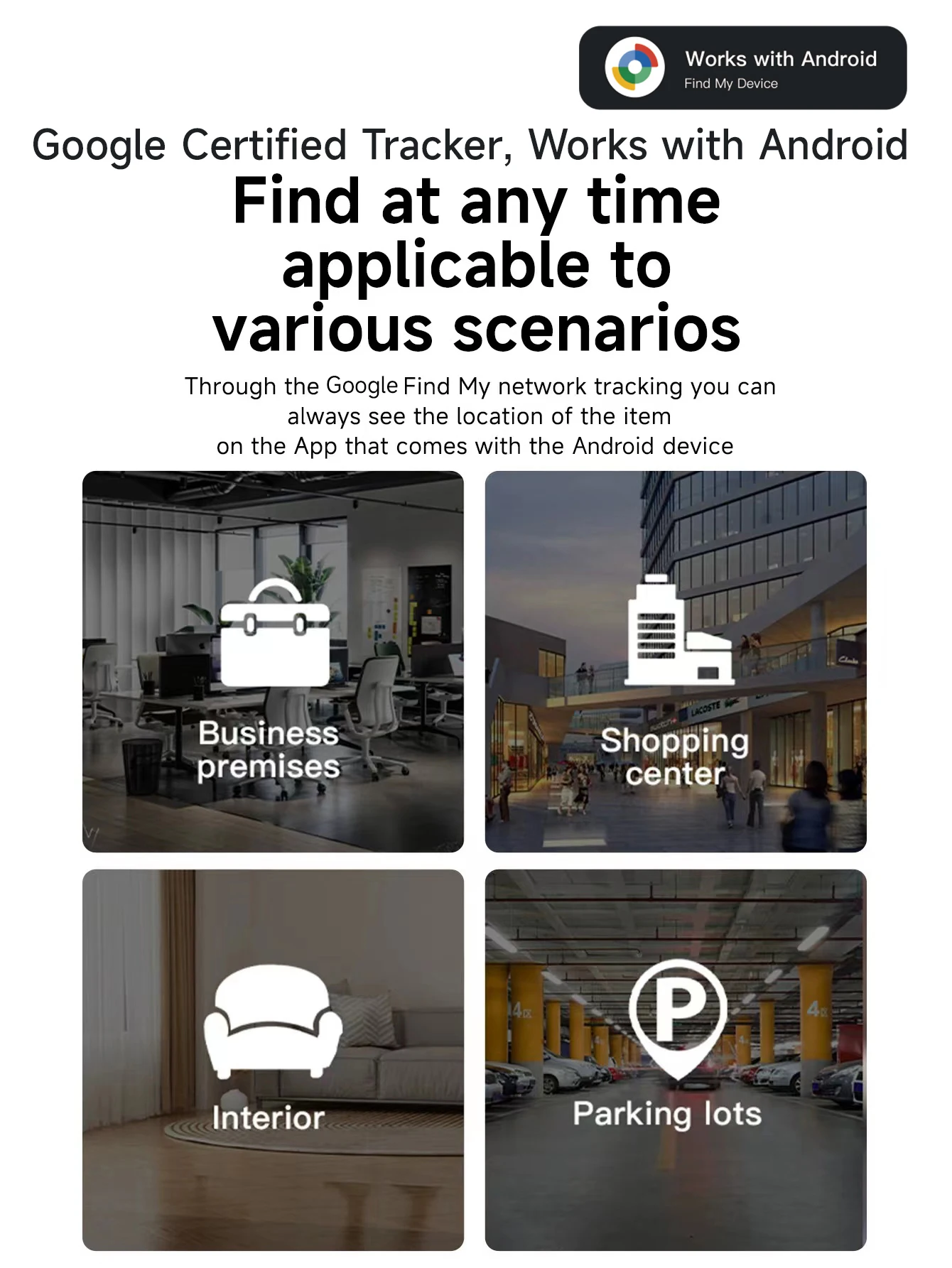
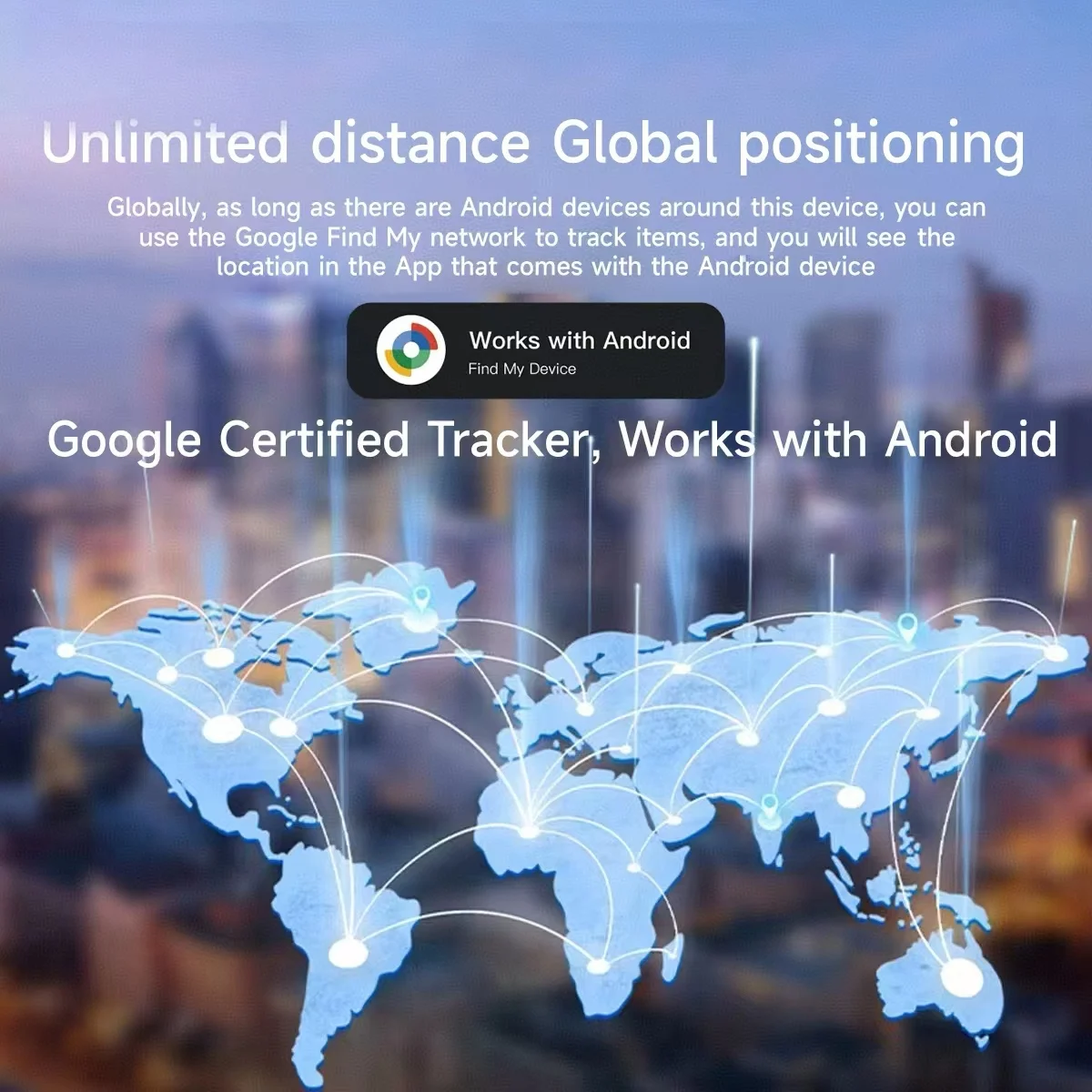
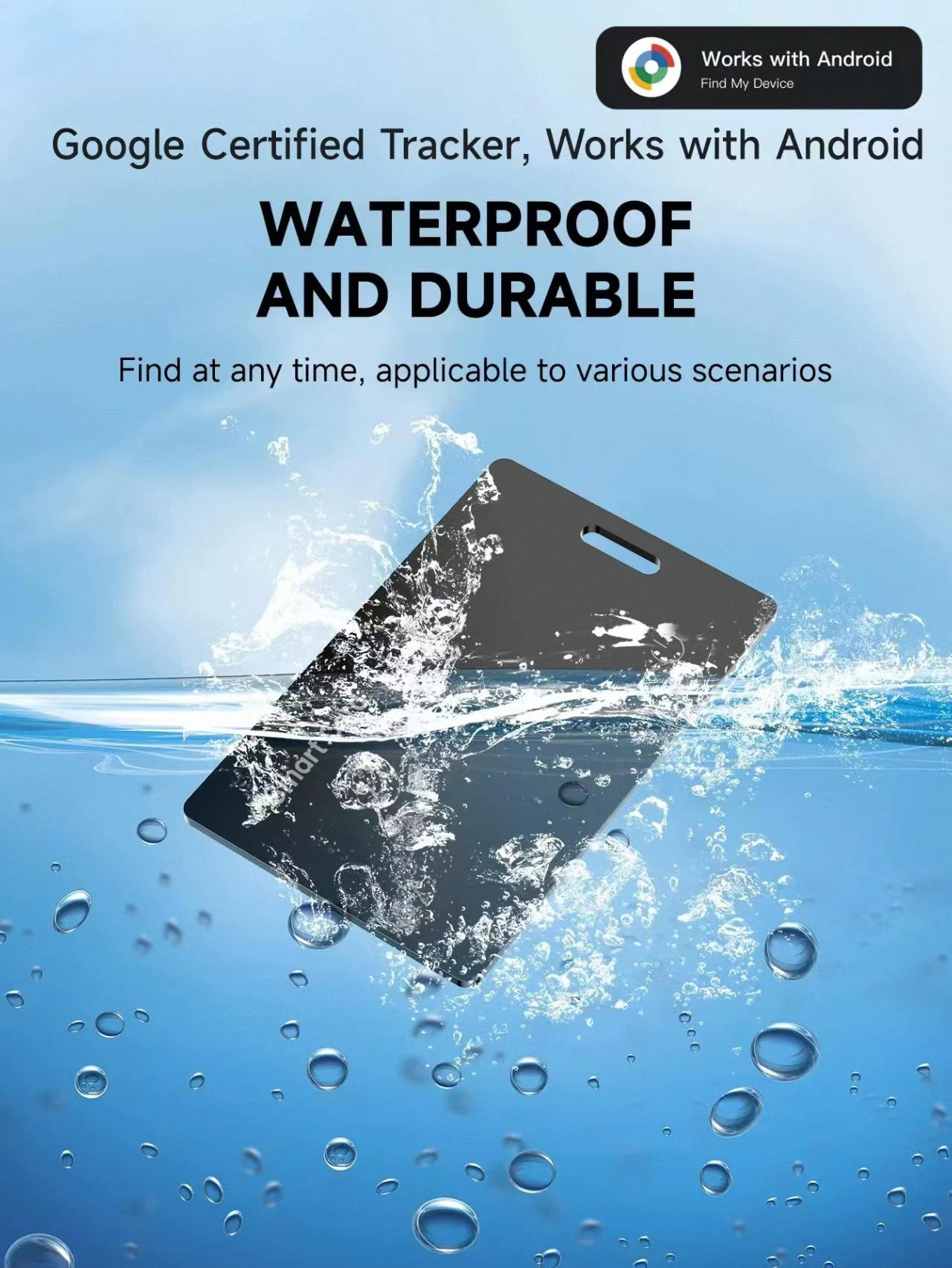
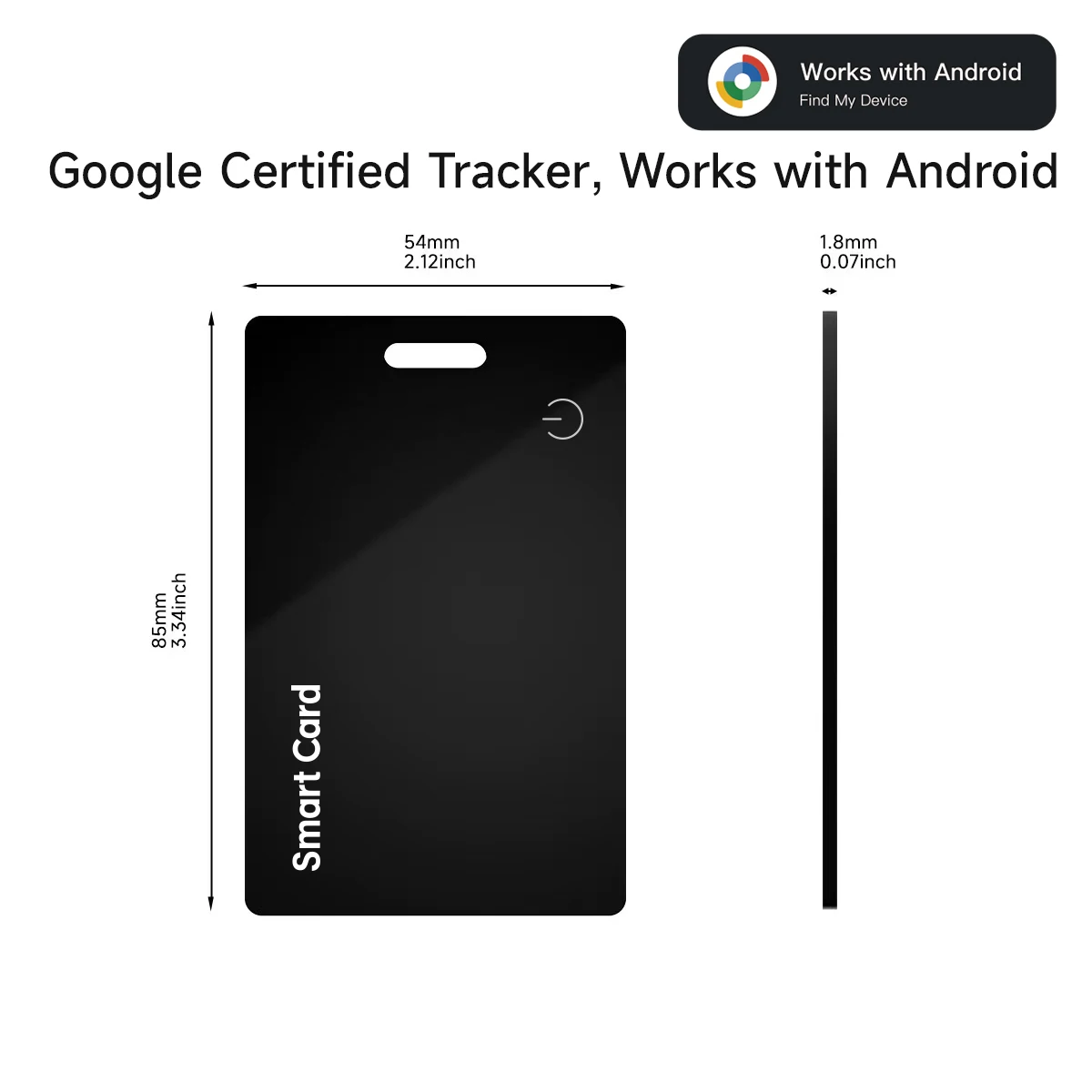
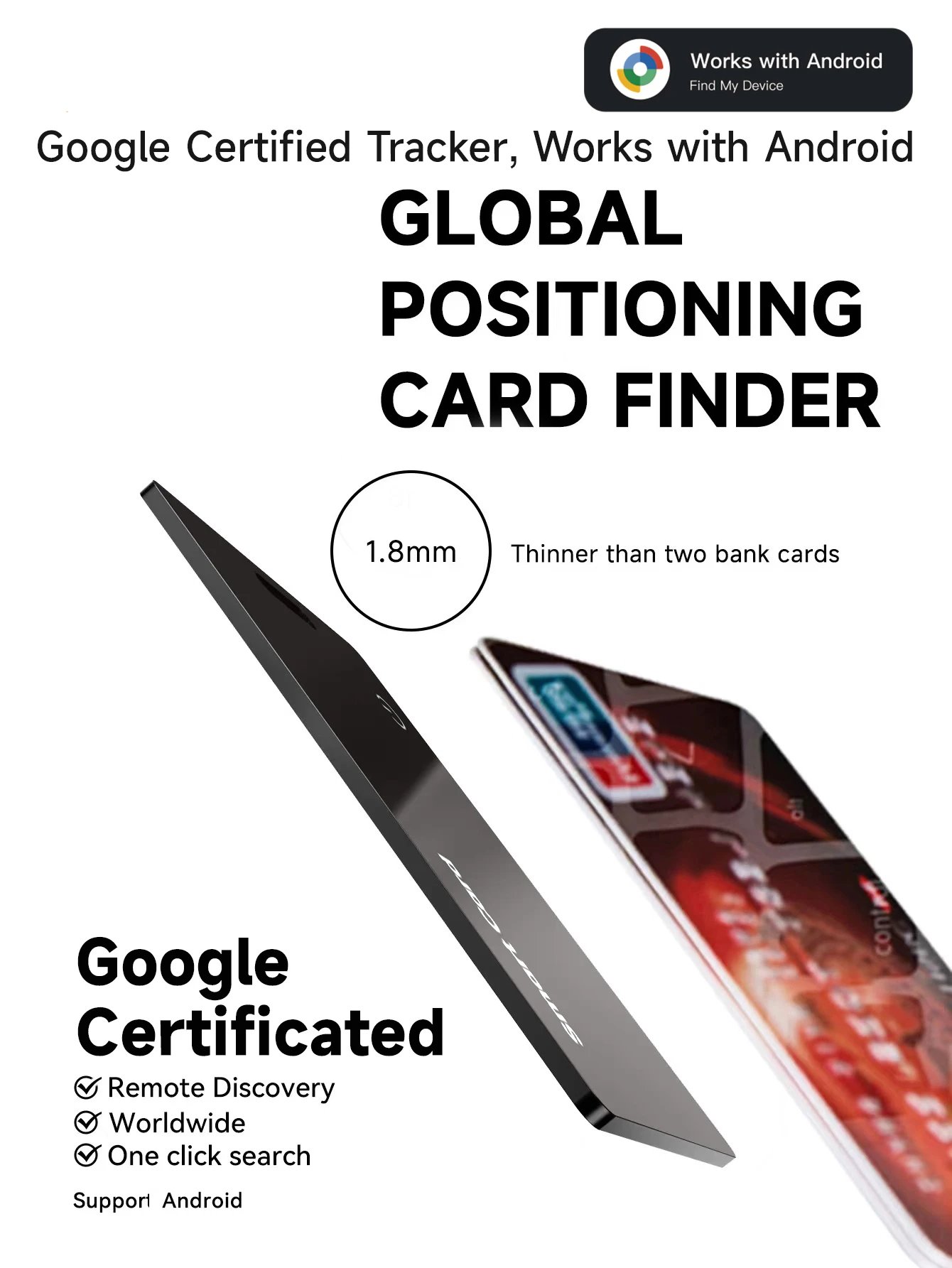
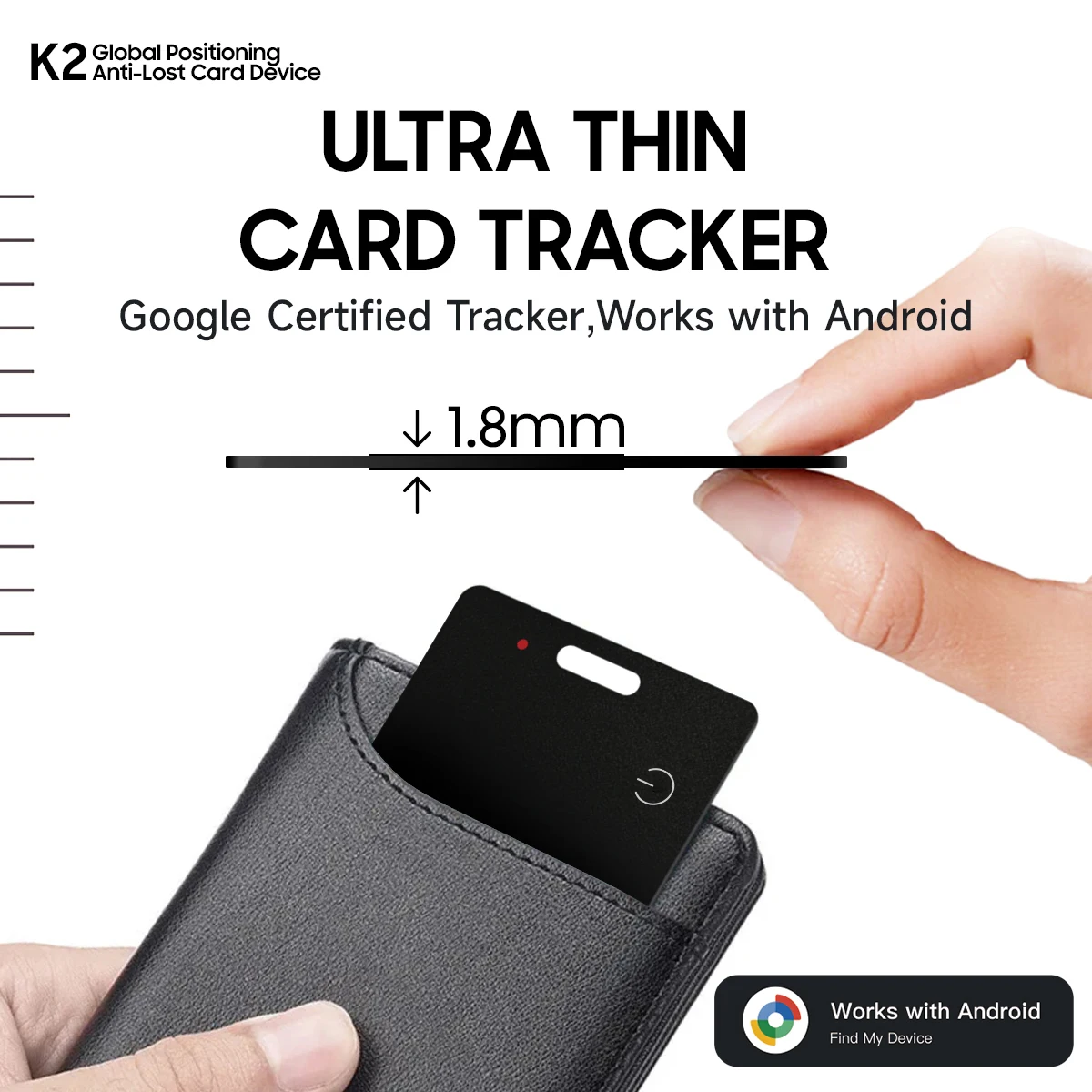
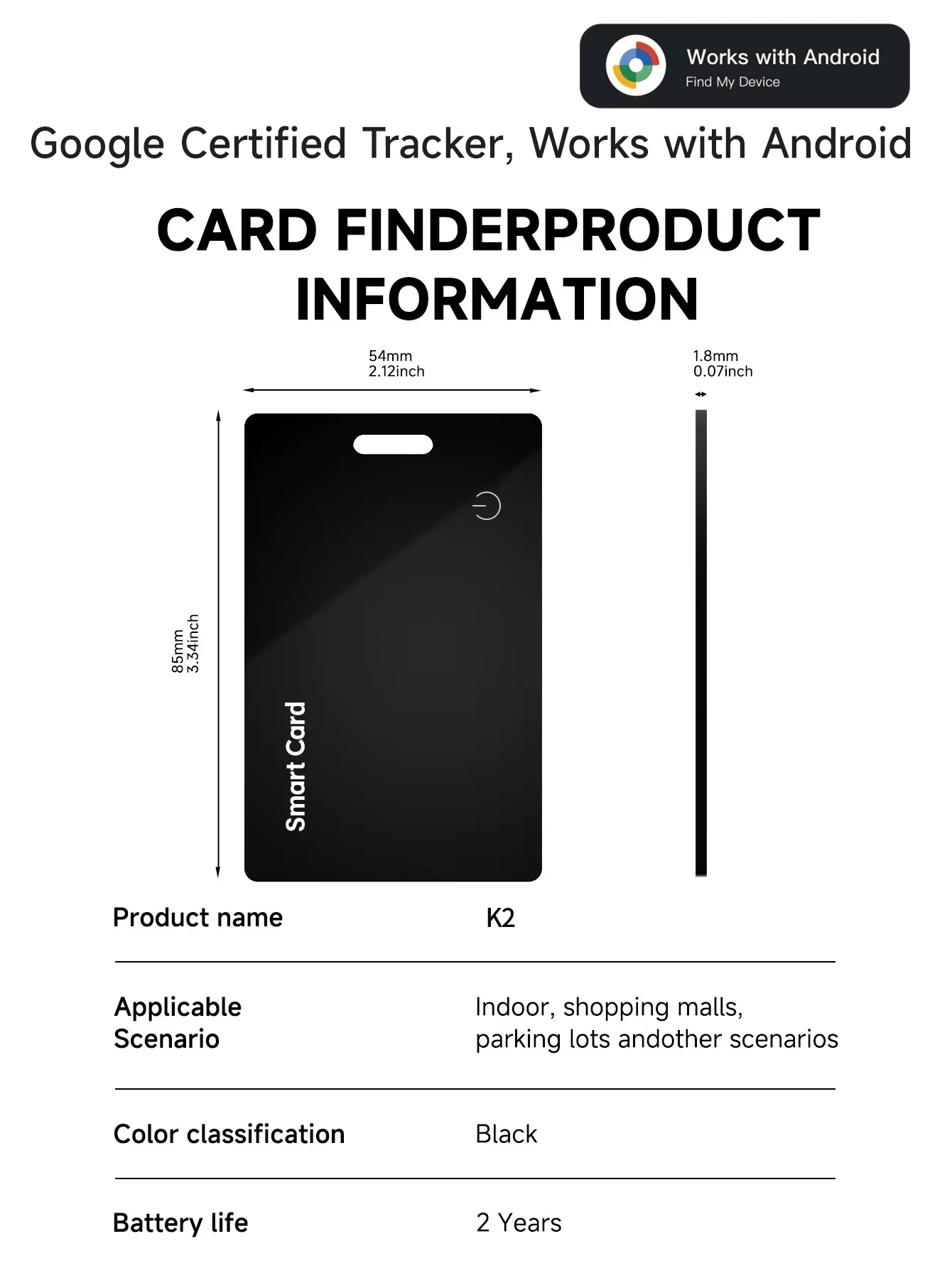
Google Certified Products
Integrate with Google Find My APP( Google HUB)
Global positioning range
• Privacy protection
IP68 Waterproof
Product Description
---Reliable protection at any time.
Android intelligent anti loss devices seamlessly connect to your phone. Simply open the application to immediately locate any lost items. With the new design and contract, it's meant for protection, so you can live carefree.
---Rediscover critical moments.
Forgot wallet or lost keys? The new Android intelligent anti loss device gives you peace of mind! Easily track your items with Android devices and protect your essentials at all times.
---Track everything, everywhere!
Say goodbye to the lost things. The new Android intelligent anti loss device can help you track all valuable items even if they are missing. Through global tracking, it is very suitable for travel.
Packaging List
• 1 * Project Finder
• 1 * Product Instructions
1. The wireless charging cable is not included in the shipment of this product. Most mobile phone wireless chargers on the market support charging for this device.
2. This product is only compatible with the Androidsystem and is not compatible with Huawei mobile phones or devices with Apple systems
FAQ:Why can't my Android phone connect to Tag ?
A:This is usually because the user missed the automatic pop-up window of Tag, you can try to restore the factory settings. Please refer to the product manual
Manual Connection Steps
If the automatic popup doesn't appear, follow these steps to connect manually:
1. Open phone settings
2. Go to Google
3. Select All services
4. Go to Devices
5. Turn on Scan for nearby devices
6. View Available devices nearby
How to reset:Press twice in a row to hear the prompt sound, then press five times in a row. Do not release your hand for the fifth time. Release your hand again after hearing the prompt sound
(P.S.:If you can't connect even after reset and no automatic pop-up window appears, please refer to the Troubleshooting Guide.
https://www.rexzol.com/support/google/troubleshooting)
To search for devices from the Google Find Hub APP, you can refer to the following video
If you still have other questions after receiving the item, Please don't worry!please communicate with the merchant, share product photos and videos, and get an immediate refund for verified quality defects.